Add a client and keep notes
Your client book mostly builds itself: every booking adds or updates a client automatically. The New client button covers everyone else, the walk-in, the phone inquiry, the person you met at an event.
Add a client
- Go to Clients and click New client.
- Enter their name and email. Phone, birthday, and tags are optional but worth having.
- Add a First note if there’s context worth keeping: “met at the bridal expo, wants microblading in October.” It lands on their timeline so it’s never lost.
- Save. They’re in your book, ready to be booked.
If the email already belongs to a client, Rezzy tells you and links you to them instead of creating a duplicate. One client, one record.
The timeline
Open any client and you’ll see their whole history in one place: bookings, cancellations, notes, emails sent, and completed follow-ups, newest first.
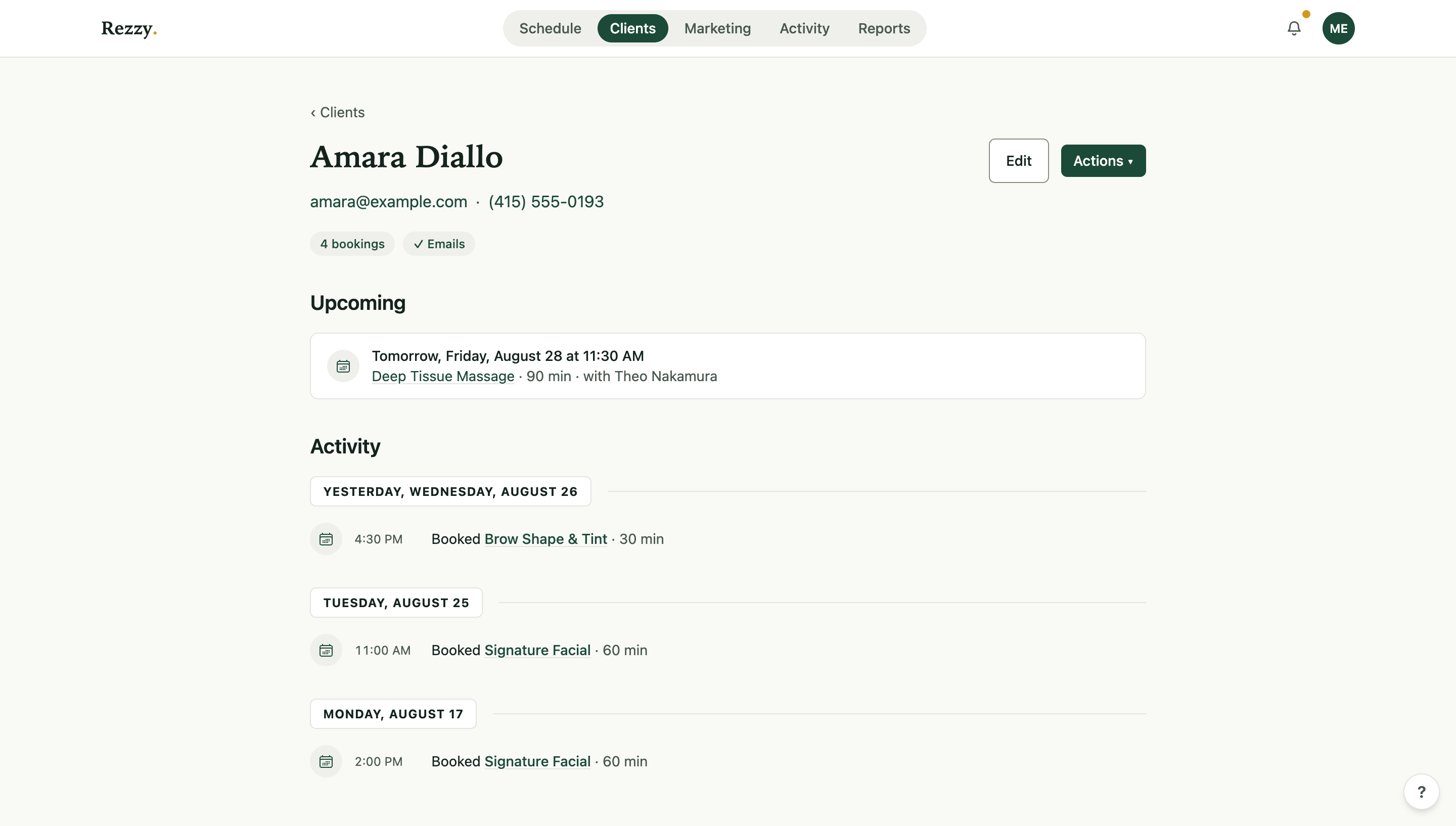
Everything about the relationship, in order, on one page.
Add a note from their page whenever something matters: formulas, preferences, allergies, how they like their coffee. The next person at the desk sees it before the client sits down.
Follow-ups and staying in touch
- Add a Task on a client when there’s something to do later: “check how the color settled,” “call about the retail order.”
- The Needs rebooking view on the Clients page surfaces everyone whose last visit is older than your rebooking window with nothing upcoming. That list is your quiet-week fix.
- Marketing consent always comes from the client, never from you. They opt in through the booking form or their own profile; adding a client never signs them up for anything.
When someone moves on
Archive, don’t delete. An archived client disappears from your lists but keeps their history, so if they walk back in two years later, you still know their formula.
Run your front desk on Rezzy
Online booking, a client book that builds itself, automatic reminders, and rebooking that runs on its own.