Create a booking for a client
Clients book themselves through your booking page, but plenty of appointments still start with a phone call or a “can you fit me in?” at the desk. The Schedule flow books them in from your side.
From anywhere
- Click Schedule in the top navigation.
- Click the day you’re booking and choose Create booking. (The New menu in the header does the same from anywhere.)
- Pick the service, then an open time. The day you clicked is already selected. You only see slots that actually fit: your hours, existing bookings, blocked time, and calendar busy times are all respected.
- Enter the client’s name and email (start typing to pick an existing client), add a note about what they want, and save.
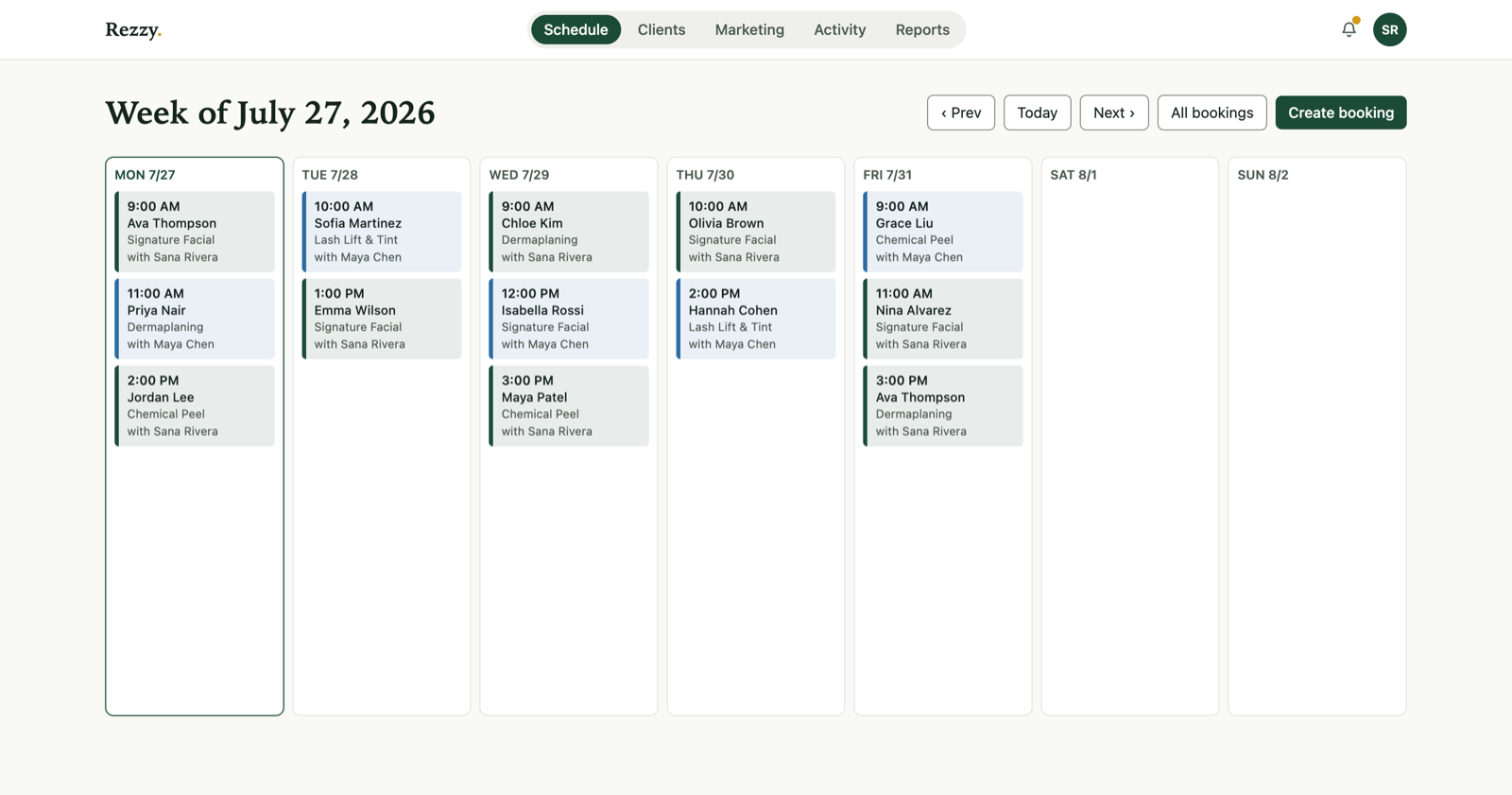
| *The new booking lands on your calendar immediately. Flip the Week | Month toggle for a whole-month view; any day clicks through to its week.* |
Booking a regular who comes on a rhythm? Set Repeats on the details step to book the whole series at once. See Book a standing appointment.
From a client’s page
Booking a regular? Open their page in Clients and choose Create a booking from the Actions menu. The flow opens with the client already filled in, so it’s just service and time.
What happens next
- The client gets the same confirmation email and pre-visit reminder as a self-booked appointment, with their own reschedule and cancel links.
- The visit is added to their timeline, so their history stays complete.
- Team members can create bookings too, so the front desk doesn’t need the owner.
One thing the Schedule flow skips: payment. Deposits and prepays apply to bookings made through your public booking page, where the client can pay. For a phone booking that needs a deposit, book it, then send a payment link from the booking.
Run your front desk on Rezzy
Online booking, a client book that builds itself, automatic reminders, and rebooking that runs on its own.