TL;DR: Here’s how to take online bookings without living in your DMs: set up your services and hours in a booking tool, grab a shareable link, and post it everywhere clients already look for you.
If you’re still booking appointments by DM, text, or a paper book, you already know the real cost: it’s not the ten minutes per booking, it’s the back-and-forth that happens after hours, on your day off, mid-service with a client in the chair. Moving to an online booking page fixes that by letting clients see your real availability and grab a slot themselves, any time of day. Here’s the step-by-step to set it up.
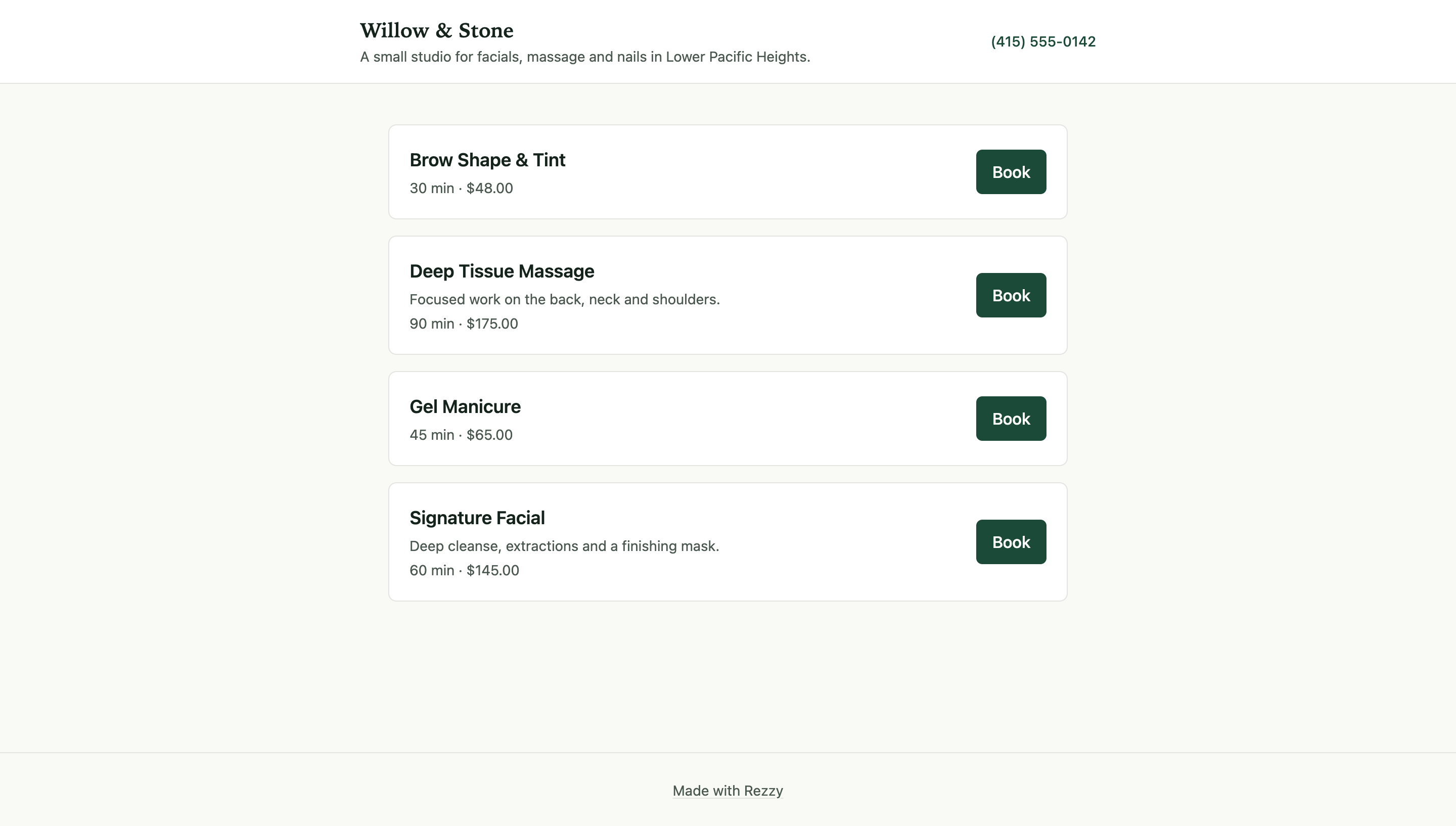
This is the booking page your clients see, on your own Rezzy link.
What do you need before you start taking online bookings?
Three things you almost certainly have already: your services with prices and durations, your working hours including days off, and a way for clients to reach you if something goes wrong. No website, no logo redesign, no software budget. In Rezzy all three live on one screen, setting up your booking page.
How do you set up online booking step by step?
Follow these in order. None of them require touching code.
- List your services. For each one, set the name, duration, price, and any buffer time you need between appointments (cleanup, room reset, product dry time). Be specific: “Gel Manicure” and “Gel Manicure + Nail Art” book better as two services than one vague “Manicure”, because clients know what they are reserving.
- Set your weekly availability. Enter your regular working hours for each day. If you take a real lunch, set two windows for that day (morning and afternoon) instead of one long one, so nobody books you at 12:30. This is the source of truth clients book against, so match your real schedule, not an aspirational one. The click-by-click, including days off and holidays, is in the set your hours guide.
- Add one-off exceptions as they come up. Vacation days, a late start, a holiday closure. Block the time off once and your booking page stops offering those slots, so you’re not fielding “are you open on the 4th?” messages.
- Turn on confirmation and reminder messages. A booking made at 11pm should get an instant confirmation, and the client should get a reminder the day before without you lifting a finger. This is the step that replaces your manual DM follow-ups.
- Decide if any services need a deposit. New clients and high-value or long services are the ones worth protecting. You can leave deposits off at first and turn them on later once you see which bookings tend to fall through.
- Grab your booking link (and the embed code, if you have a website). This is the URL you’ll share everywhere. If your booking tool supports it, you can also put booking on your own website and Google instead of just linking out.
- Share the link, then stop taking bookings by DM. Both halves matter, and the second one is the step that gets your evenings back. The next two sections cover each.
The whole sequence usually takes under an hour for a solo studio. More services or staff calendars add time, the steps stay the same.
Don’t want to set this up alone? Rezzy builds your booking page, reminders, and client list for you. Take a booking today.
Where should you share your online booking link?
Put the link everywhere a client currently has to ask you for availability. Two placements matter on day one, because that is where first-time inquiries already land: your Instagram or TikTok bio, and the booking link on your Google Business Profile. Between them they cover the people who found you by scrolling and the people who found you by searching.
Add the rest over the following week: your website, your email signature, a text auto-reply for after hours, and a QR code at the front desk for clients rebooking on their way out. Each placement has its own steps, and they are all in where to put your booking link.
How do you get clients to use the booking link instead of DMing you?
Make the link the path of least resistance and stop offering the manual alternative. When someone DMs asking for availability, reply with the link instead of typing out open times. Every time, even for regulars. Pin a story with the link on top and lead your auto-reply with it. Clients default to whatever is easiest, so if DMing you stays easier than tapping a link, some of them will keep DMing you.
The habit change is on you, not the client. The first few weeks are the hardest. After that, new clients never learn the DM path exists, because the link is the first thing they see.
The client who calls still gets booked. You just put their appointment in the same calendar as everyone else’s, where they can reschedule or cancel it themselves without messaging you. That is what prevents the double-booking that happens whenever a DM’d appointment and an online one are never checked against each other.
Should you require a deposit when you first start taking online bookings?
Not necessarily on day one, but it’s worth having ready for the bookings most likely to fall through: first-time clients and long or high-cost services. A deposit turns a casual booking into a real commitment, which matters more once you’re not personally confirming every appointment by text.
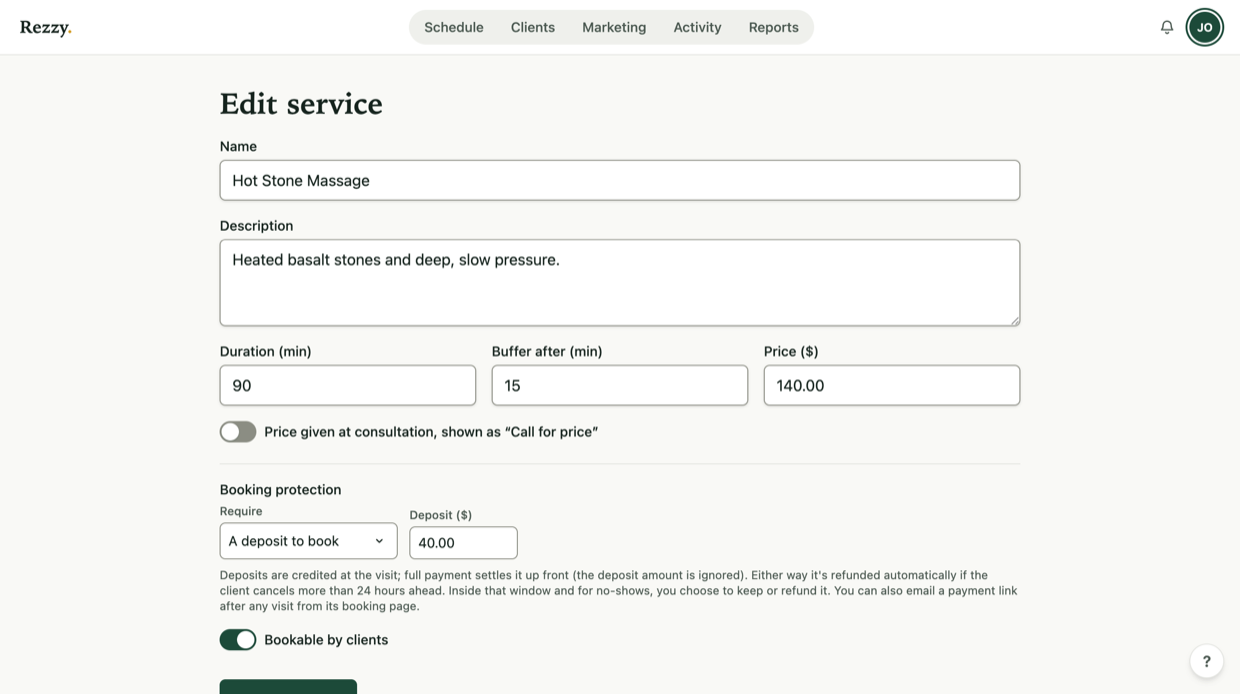
One service, one screen: duration, buffer, price, and whether a deposit is required to book.
A reasonable order of operations: launch without deposits, watch your no-show rate for a few weeks, then turn deposits on for the services where you are losing money. You learn where the risk actually sits instead of guessing. The fuller breakdown is in how to reduce client no-shows.
How do reminders replace the manual confirmation texts you’re sending now?
Two automatic messages cover the job you’re doing by hand: a confirmation the moment the booking is made, and a reminder the day before. The confirmation reassures the client who booked at 11pm that it worked. The day-before reminder is the one that saves the slot, because it lands while there’s still time for them to move it instead of ghosting.
Set it up once and it runs on every booking, including the ones made while you are mid-service. That is usually the single biggest time-saver in the whole switch. If one particular client worries you, a same-day nudge by hand is still worth twenty seconds. Save it for repeat offenders instead of making it your default.
What goes wrong in the first week (and how to avoid it)
Almost every rough launch comes down to the same five things, and each is easier to prevent than to explain to a client afterwards.
| The mistake | What it costs you | The fix |
|---|---|---|
| Hours on the page don’t match your real week | You cancel on a client who booked in good faith, worse than never offering the slot | Set your true hours, then test-book every window yourself |
| One vague service instead of specific ones | The wrong duration gets reserved, so you run 30 minutes behind all day | Split anything with a real time difference into its own service |
| No minimum notice window | Someone books the 9am slot at 8:47am, while you are still in the car | Require a few hours of notice, more if you need prep time |
| No buffer between appointments | Cleanup and reset happen on your lunch, or not at all | Add buffer time per service, especially where a room turns over |
| The link is three taps deep | People give up and DM you anyway, so nothing changes | One tap from your Instagram bio, and one from your Google profile |
Test your own booking page as a client before you share it. Book a real appointment on your own link, on your phone, and read the confirmation. You will catch a wrong price, a missing service, or a duration that does not match reality in two minutes, before a client does.
If you are still deciding which tool to put all of this in, the longer comparison is in salon booking software.
One last thing worth setting on day one: a cancellation window. Decide how late a client can cancel or reschedule themselves, put it on the booking page, and let the software enforce it. A written window does quiet work every time someone considers cancelling an hour out, and it saves you making the same judgment call by text forever. The wording is in the cancellation policy template.